WordPress Site Hacked? Here’s Exactly What to Do in the First 30 Minutes
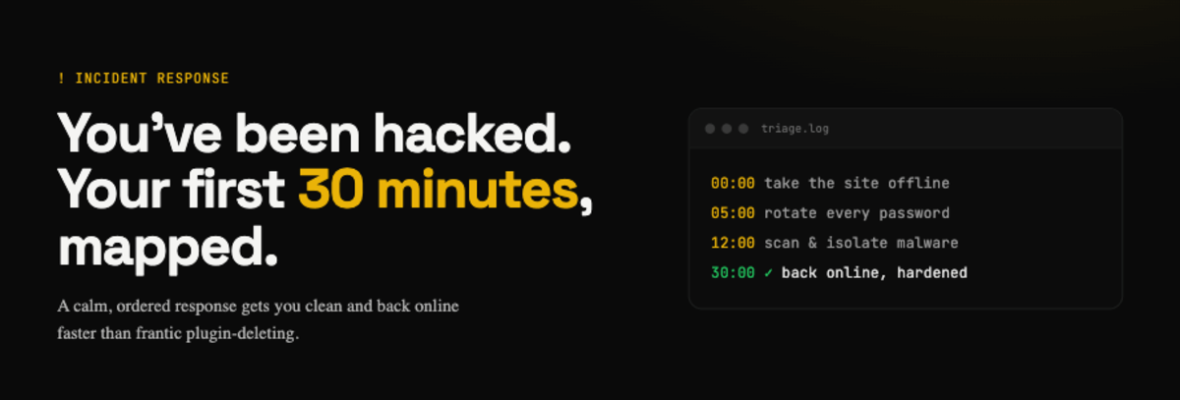
Most WordPress hacks don’t happen because someone targeted you specifically. They happen because a bot found an outdated plugin on your site — and used a known vulnerability to get in. Whatever you’re seeing right now, the first 30 minutes matter more than you think.
Step 1: Don’t panic, but act immediately (0–2 minutes)
The worst thing you can do is freeze. The second worst thing is to start randomly clicking around and deleting files without a plan.
Your goal in the first two minutes: assess, not fix.
Take a screenshot of what you’re seeing. Note what’s visible on the frontend, check if you can still log in to wp-admin, and write down when you first noticed the problem.
Step 2: Put your site in maintenance mode (2–5 minutes)
If your site is serving malware, spam pages, or a defaced homepage, visitors are being exposed to it right now. Get it offline.
- Log in to your hosting control panel and toggle the site off
- Use your host’s “suspend site” feature
- If you can still access wp-admin, activate a maintenance mode plugin
If you can’t do any of the above, contact your host’s support immediately and ask them to take the site down at the server level.
Step 3: Change all passwords — right now (5–10 minutes)
Before you touch anything else, change: your WordPress admin password (all admin accounts), your hosting account password, your FTP/SFTP credentials, your database password (then update wp-config.php), and any email addresses connected to the site.
Hackers often maintain access by leaving their credentials behind. You need to lock them out before cleaning up. Use a password manager and generate long, random passwords.
Step 4: Check for other admin users you didn’t create (10–15 minutes)
Go to Users → All Users in wp-admin. Look for any administrator accounts you don’t recognise. Hackers frequently create a backdoor admin account so they can get back in even after you change your password.
Delete any accounts you didn’t create. Also check: Settings → General to make sure the site URL hasn’t been changed.
Step 5: Run a malware scan (15–20 minutes)
Install Wordfence or use your host’s built-in malware scanner. Run a full site scan. The scan will tell you which files have been modified recently, which files contain known malicious code, and whether your WordPress core files have been tampered with.
Don’t delete files blindly — some flagged files might be legitimate. Read the report carefully.
Step 6: Check Google Search Console (20–25 minutes)
Log in to Google Search Console. Go to Security & Manual Actions → Security Issues. If Google has detected malware or hacked content, it will show here. If there’s a blacklist warning, you’ll need to request a review after cleanup.
Step 7: Call in professional help (25–30 minutes)
If you’re not a developer, this is where you stop trying to DIY and get professional support. A proper cleanup means removing every infected file, closing every entry point the hacker used, hardening the site, and restoring from a verified clean backup. Missing even one infected file means you’ll be hacked again — often within hours.
At FixWP, we respond to hacked site emergencies in under 2 hours, 24/7. We scan, clean, harden, and handle Google blacklist removal. Get emergency support →
How to avoid this next time
- Keep everything updated — WordPress core, themes, and plugins
- Use a reputable security plugin — Wordfence or Solid Security
- Enable two-factor authentication on all admin accounts
- Take daily backups stored off-site
- Limit login attempts to block brute force attacks
- Delete unused plugins and themes — they’re a liability even if deactivated
Getting hacked is stressful, but it’s fixable. The faster you act, the less damage gets done. If you’re dealing with a hacked site right now, contact FixWP — we’ll get back to you in under 2 hours.