How to Add an AI Chatbot to Your WordPress Site (Without Breaking Anything)
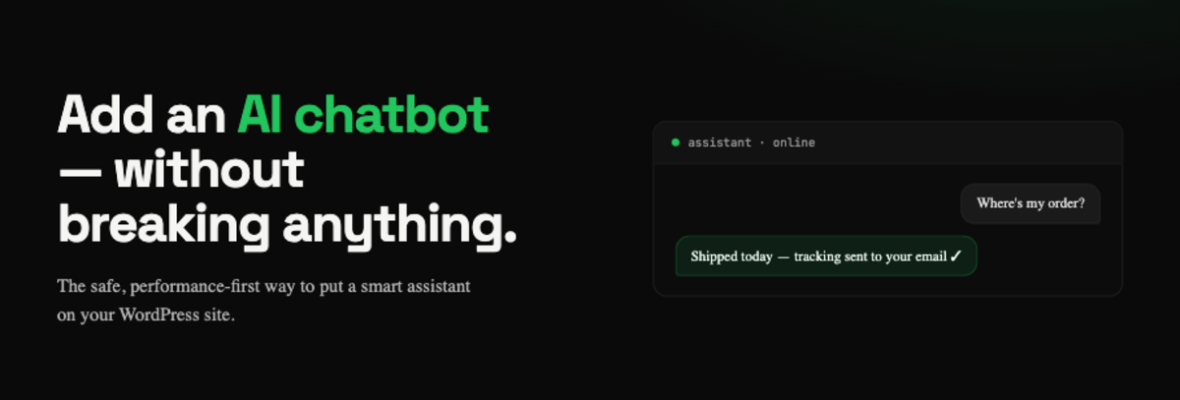
AI chatbots are no longer just for big enterprises. In 2026, adding a capable AI assistant to a WordPress site is something any site owner can do in an afternoon. The question isn’t whether to add one, it’s which approach is right for your site.
Do you actually need an AI chatbot?
Before installing anything, be honest about what you’re trying to solve. AI chatbots work well for answering common customer questions 24/7, qualifying leads before they reach your inbox, helping WooCommerce customers find products or track orders, and reducing support load for predictable, repeat queries.
If you’re getting the same 10 questions over and over, a chatbot will pay for itself quickly. If your enquiries are all unique and complex, you might get more complaints than compliments.
Option 1: A plugin-based chatbot (easiest)
The fastest way to add AI to your WordPress site is a chatbot plugin.
Tidio — combines live chat with an AI responder. Good for stores, has a WooCommerce integration, and the free plan is genuinely useful.
Crisp — solid free tier, clean interface, AI features on paid plans. Works well for service businesses.
Botpress — more powerful and customisable, better if you want to build conversation flows. Steeper learning curve.
How to install (using Tidio as an example): Go to Plugins → Add New, search for “Tidio”, install and activate, create a free Tidio account, paste your Tidio Public Key in the plugin settings. The chat widget will appear automatically on your site. Setup time: 15–30 minutes.
Option 2: Embed a custom GPT or AI assistant
If you use ChatGPT Plus or an OpenAI API key, you can create a custom AI assistant trained on your business content and embed it in your site.
Custom GPTs (ChatGPT Plus): Build a GPT with your FAQ content, product info, and policies. No coding required, but limited visual integration.
Direct API integration: Full control over appearance and behaviour. Requires a developer. Best for sites with specific workflows — like a WooCommerce assistant that actually knows your product catalogue.
Option 3: AI-powered search (underrated)
Most site owners think “AI chatbot” when they want to improve how visitors find information. But often what they actually need is better search. Tools like SearchWP with AI add-ons let visitors ask natural language questions and get accurate answers from your content — without a full chat interface. Lower friction for users, much cheaper to run.
Things to check before you go live
Site speed: AI widgets load external scripts. Run a speed test before and after installation.
Mobile rendering: Test the chat widget on actual mobile devices. Many look fine on desktop and terrible on a phone.
GDPR/privacy: Any tool that collects conversation data needs to be disclosed in your privacy policy. Check where the vendor stores data — EU-based storage matters if your customers are in the EU.
Conflict testing: Test the chatbot on a staging site before going live. Chat widgets are notorious for conflicting with page builders and caching plugins.
What we see go wrong
- Installing multiple chat plugins that conflict with each other
- Not training the chatbot on actual site content (so it gives generic answers)
- Leaving the default chatbot greeting (“Hi! How can I help?” — tells the visitor nothing about your business)
- Forgetting to test on mobile before going live
AI on your site doesn’t have to be complicated. Start with one tool, test it properly, and expand once you know it’s working. If you want help integrating an AI tool with your WordPress or WooCommerce site cleanly, get in touch with FixWP. We’ll scope it out and quote a fixed price.